Anthropic has set a high standard for tool integrations in the AI space with its Model Context Protocol, or MCP for short, at the end of last year. The team at Portia AI, an open-source AI framework that focuses on building predictable and secure AI agents, tests every official MCP server implementation that gets added to its tool catalog.
Much has been said about the risk of trusting agents with the high stakes use cases, especially regarding Stripe APIs and anywhere money movement may be involved. With its emphasis on human control during planning and execution, the Portia AI team explored building a customer refund agent that uses Stripe's MCP server to process a customer refund request safely, by defining the conditions that "short-circuit" these agents with human intervention.
In this post, you will see how you can build an agent that:
- Reads a customer refund request from a Gmail inbox
- Assesses it against a refund policy text file
- Asks for human approval before issuing a refund.
- Creates the refund using Stripe's MCP tools
You can also find this example in Portia's agent examples - let's take a look.
Overview of the Portia SDK
Portia AI wants to make it easier to build agents for regulated use cases by offering guardrails you can dial up or down on both planning and execution. Here's what you will see below:
- A planning agent considers the task at hand and the tools at its disposal, and produces an explicit multi-agent plan.
- The Portia client then invokes execution agents to run the plan, adding their outputs to a persistent plan state along the way.
- An execution hook is used to deterministically pause the agent attempting to create a refund and to solicit final human approval while providing an LLM-driven assessment.
- The human:agent interface is managed by an abstraction called a
clarificationwhich gives developers the flexibility of presenting such interactions to users through any UX surface.
Portia installation and example setup
To run this example, you need:
- Python 3.11 (or greater)
- uv: to manage dependencies
- A Portia AI API key: available at app.portialabs.ai > API Keys
- An OpenAI API key
- A Stripe API key
To access the code, you can clone the agent examples repository locally and navigate to the refund-agent-mcp folder. There you can copy the .env.example file to .env and add your API keys.
Adding the Stripe MCP server to your tool registry
Portia offers a complimentary cloud service that gives you access to an extensive tool registry with built-in auth. The registry includes cloud tools built by the Portia team for popular services like Gmail, Slack, and Zendesk. It also includes a rapidly growing list of MCP servers with communication over a streamable HTTP connection, including Stripe's official MCP server. Portia allows you to extend the registry with your own tool definitions, connect local MCP servers, or add new remote ones (Portia handles the authentication for you).
You can check out the integrations available in Portia cloud and configure the Stripe MCP server with your Stripe API key. Head over to the dashboard and follow along with the video snippet below. This adds all of the Stripe MCP server's tools to your DefaultToolRegistry.
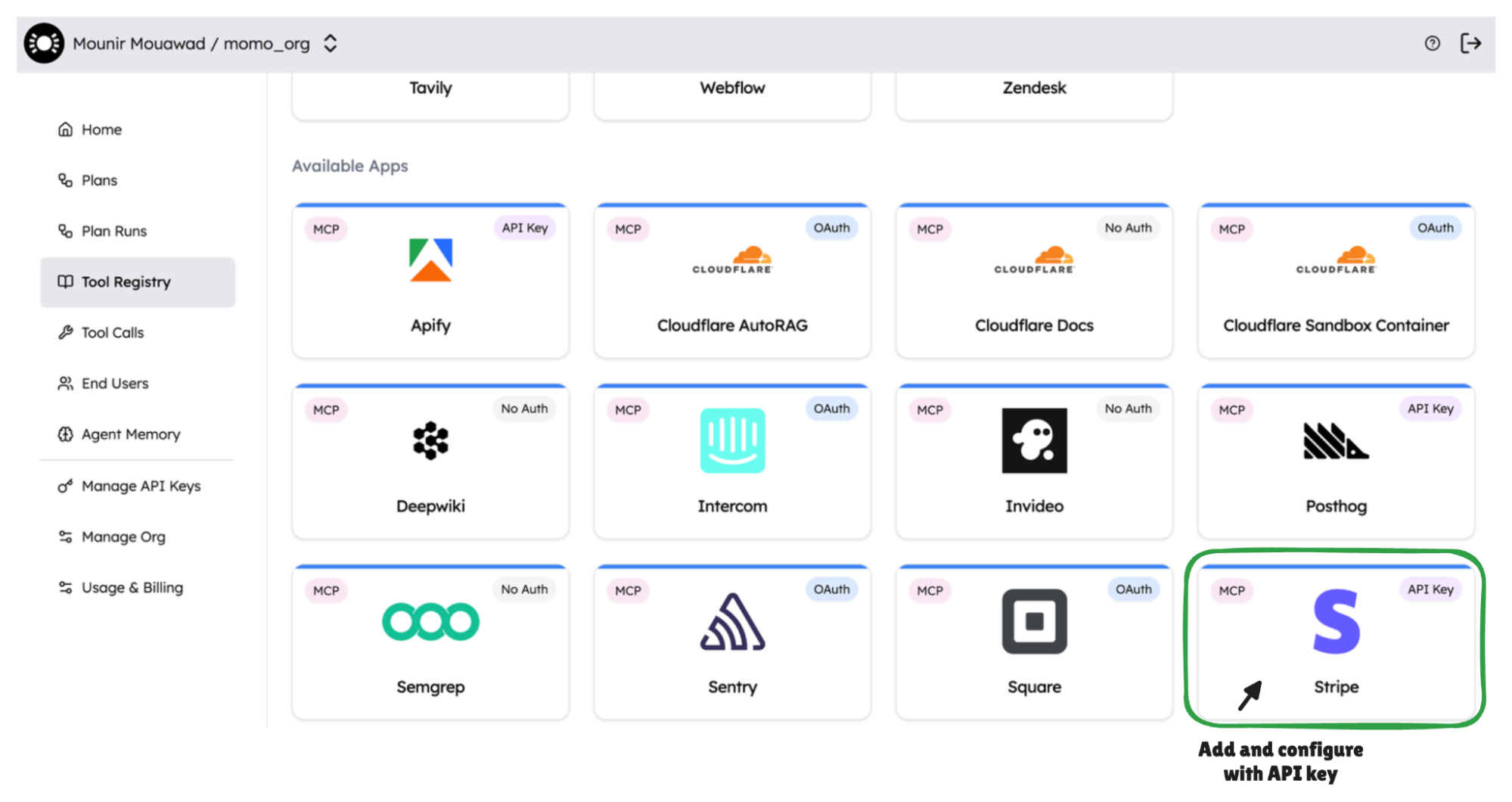
Portia stores all authentication credentials using production-grade encryption.
Usage
To run this example:
- Set up a Stripe payment you want to refund. You can use a handy script that is available in the repository:
uv run stripe_setup.py --email <test email>.
- Send an email to that test email address with the subject "Hoverboard refund request" and an example refund request. For example:
Hi Hoverboard support team,

I bought one of your hoverboards 3 days ago. When I took it out of the box and turned it on, it did not work. Please can I get a refund?

Thanks,
Marty McFly
- To run the agent, execute the following command:
uv run refund_agent.py --email "<replace-with-stripe-customer-email>"
- At the end of your plan, you should see a refund show up against the payment in your Stripe dashboard.
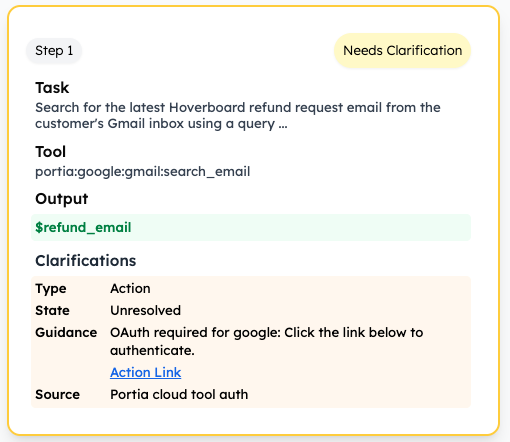
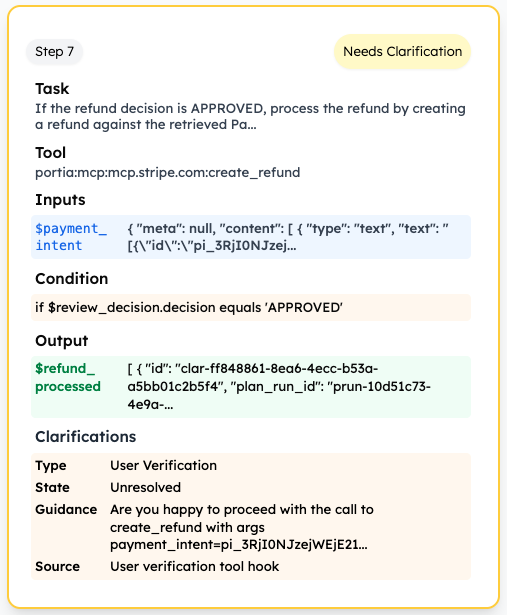
You can monitor the execution from the Plan Runs tab of the Portia dashboard. Your input is required by the agent in two different steps as shown below (the exact step numbering may vary):
- Step 1: Human grants access to Gmail. Resolve this by clicking on the oAuth link on the dashboard.
- Step 7: Human reviews and approves. Resolve by typing in "y" inline when you see this clarification in the CLI.
Understanding the code
Tool selection and tool calling
Once set up in the Portia Tool Registry, the DefaultToolRegistry automatically fetches Stripe (and any of the tools you have enabled in the registry). These are provided to the planner to produce the final plan meeting the user's query. They are then used during the plan run to complete the plan run and the task at hand. Based on the prompt provided, you will find that the plan runs correctly, querying for the customer and then payment_intent objects in Stripe before creating the refund against the most recent one.
We want the agent to read the refund request, compare it with the company's refund policy (see ./refund_policy.txt) and make a decision autonomously. This last step is handled in the RefundReviewerTool custom tool, which is combined with the DefaultToolRegistry.
Agent and human refund approval clarification
Because refunds involve sending out money, if the agent thinks a refund should be issued, we want to get a human to review the request along with the agent's rationale.
To achieve this, you can pause execution and wait for a clarification to get a human to review the request and the agent's analysis. This is implemented using ExecutionHooks by setting the before_tool_call property to invoke the method clarify_on_tool_calls("mcp:stripe:create_refund") and raise the required clarification. If the end user replies yes (types in 'y' in the CLI), the workflow proceeds, otherwise it exits without creating the refund.
In this particular case, you use the CLI to elicit responses from the human, but you can build end-to-end applications that handle clarifications and communication back and forth with the user instead.
# Declare your Portia client and set up your execution hook before the create_refund tool call
portia = Portia(
  config=config,
  tools=tools,
  execution_hooks=CLIExecutionHooks(
          before_tool_call=clarify_on_tool_calls("portia:mcp:mcp.stripe.com:create_refund")
)
Generating and running the plan
You’re now ready to bring this together by invoking the Portia client with a natural language prompt. You’re asking it to load the refund policy from refund_policy.txt, compare it with the customer refund message in the file inbox.txt and email the customer if and once the refund is processed. The prompt also describes how refunds are created in Stripe in functional terms to improve its sequencing of the tool calls (customer --> payment intent --> refund).
# Generate and run the plan
plan = portia.plan("""
  Read the customer's refund request email from the file "inbox.txt" and decide if it should be
  approved or rejected based on the refund policy in "refund_policy.txt" file.
  If it should be approved, then process the refund. Otherwise, do not process the refund.
  Finally, send a polite email to the customer with details of what you did.

  Stripe instructions -- To process a refund in Stripe, you need to:
  * Find the Customer using their email address from the List of Customers in Stripe.
  * Find the Payment Intent ID using the Customer from the previous step, from the List of Payment Intents in Stripe.
  * Create a refund against the Payment Intent ID.
  """
)

portia.run_plan(plan)
Gmail authentication
At the start of the plan run, the agent recognizes that it needs to search a Gmail inbox and eventually send an email. Because Portia cloud's tools use OAuth, the agent requests an end user to authenticate before it starts executing so that it can complete as much of the flow autonomously as possible.
Learn more
To learn more about what Stripe is offering to support agent use cases, refer to the agent toolkit for both Python and Typescript resources.
If you want to learn more about Portia's SDK, follow the resources below:
- The SDK in GitHub
- The Portia docs
- Join the conversation on our Discord channel
- Learn more on our YouTube channel