In a past blog post, we explored how to move from hosted onboarding onto a whitelabeled embedded onboarding flow by using the account onboarding embedded component. In this blog post, we’ll go over how to build a whitelabeled dashboard for connected accounts with just a few lines of code by using Connect embedded components.
In this example, we’ll be building out the connected account dashboard for FurEver, a pet grooming SaaS platform.
Rendering payments, allowing refunds and dispute management
To achieve this in the FurEver dashboard, you could build these workflows directly with Stripe’s APIs, but doing so requires substantially more than listing PaymentIntents. You would need to implement pagination, payment-method and status presentation, permissions, payment details, refunds, disputes, capture flows, and ongoing support for new states and capabilities. The Payments embedded component provides these workflows as a Stripe-maintained UI that you can place directly inside your dashboard.
One-time setup
First, we need to make sure we’re initializing embedded components correctly for the connected account. We do this by exposing an endpoint on the FurEver dashboard server-side code that creates an account session for the current account. FurEver is a NextJS application that uses App Router, so we add a new /api/create_account_session POST endpoint:
export async function POST() {
  const session = await getServerSession(authOptions); // Get FurEver session state
  const stripeAccountId = session.user.stripeAccount.id;
  const accountSession = await stripe.accountSessions.create({
    account: stripeAccountId,
    components: {
      payments: {
        enabled: true,
      },
      // Other components go here...
    },
  });

  return new Response(JSON.stringify(accountSession), {
    status: 200,
    headers: {'Content-Type': 'application/json'},
  });
}
We'll use this API to initialize embedded components on the frontend. I’ll need to add a dependency to the @stripe/connect-js and @stripe/react-connect-js packages.
yarn add @stripe/connect-js @stripe/react-connect-js
Now that we have the packages, I’m going to edit the top-level wrapper of my frontend to include the initialization context for embedded components. This makes it so that I can render components in any part of the React tree below this wrapper.
import {loadConnectAndInitialize} from '@stripe/connect-js';
import {
  ConnectComponentsProvider,
} from '@stripe/react-connect-js';

export default function AppWrapper({children}) {
  const [stripeConnectInstance] = React.useState(() => {
    const fetchClientSecret = async () => {
      const response = await fetch('/api/create_account_session', {
        method: 'POST',
      });
      if (!response.ok) {
        throw new Error('Failed to fetch account session');
      } else {
        const {client_secret} = await response.json();
        return client_secret;
      }
    };

    return loadConnectAndInitialize({
      publishableKey:
        'pk_test_123', // Your publishable key goes here!
      fetchClientSecret: fetchClientSecret,
    });
  });

  return (
    <ConnectComponentsProvider connectInstance={stripeConnectInstance}>
      {children}
    </ConnectComponentsProvider>
  );
}
Next, we can render the ConnectPayments embedded component in the payments page:
import {
  ConnectPayments,
} from '@stripe/react-connect-js';

export const PaymentsPage = () => {
  return (
    <div>
       <div>...Header...</div>
       <div>
          <div>Recent payments</div>
          <ConnectPayments />
       </div>
    </div>
  );
}
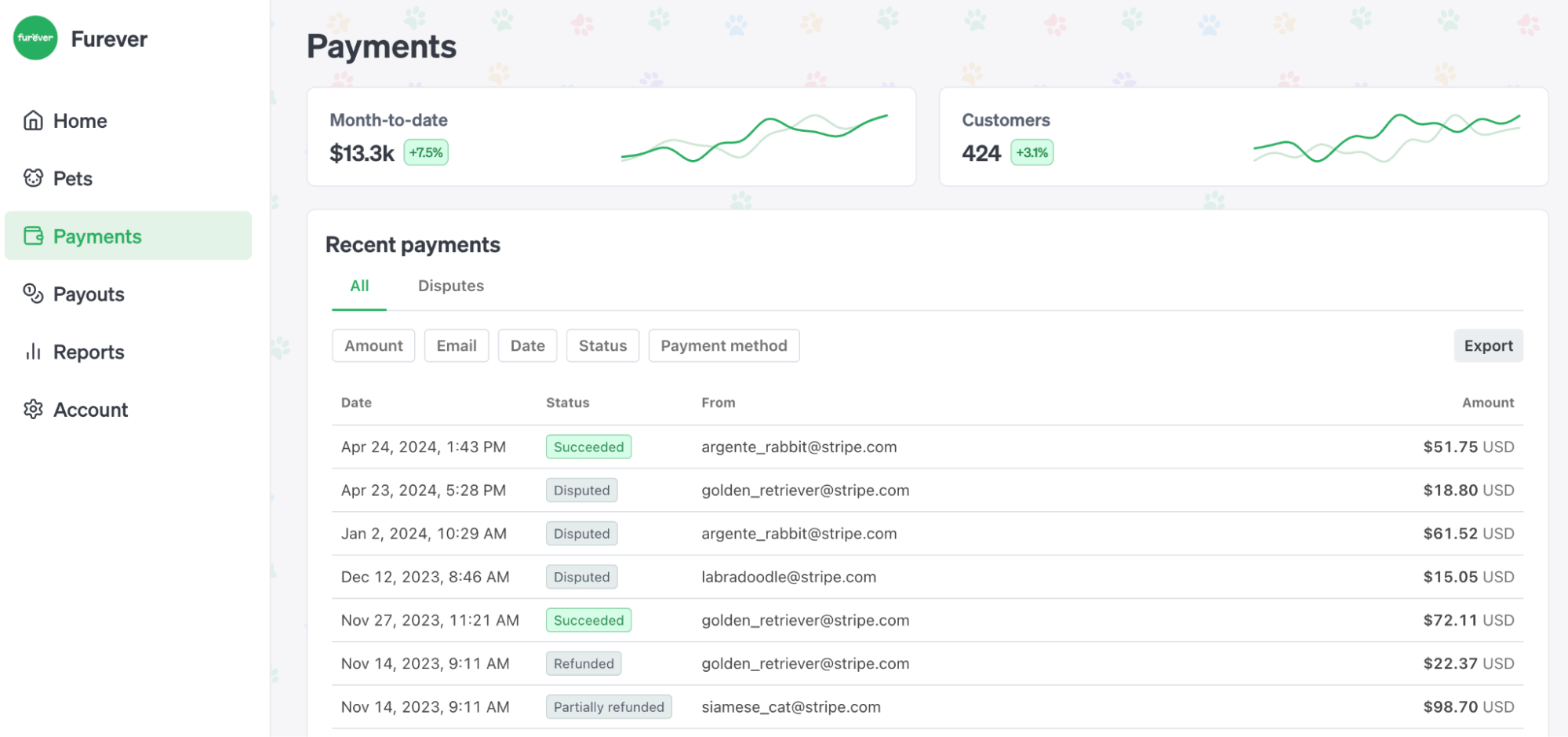
The payments component is now rendering under the “Recent payments” label. Connected accounts can now refund payments, respond to disputes, and capture payments.
Rendering balance and payouts
Let’s give connected accounts an overview of their balance and payouts by using the payouts component. On the server, we should enable the payouts component:
const accountSession = await stripe.accountSessions.create({
  account: stripeAccountId,
  components: {
    payments: {
      enabled: true,
    },
    payouts: {
      enabled: true,
    },
    // Other components go here...
  },
});

// PayoutsPage.tsx
import {
  ConnectPayouts,
} from '@stripe/react-connect-js';

export const PayoutsPage = () => {
  return (
    <div>
       <div>...Header...</div>
       <div>
          <div>Payouts</div>
          <ConnectPayouts />
       </div>
    </div>
  );
}
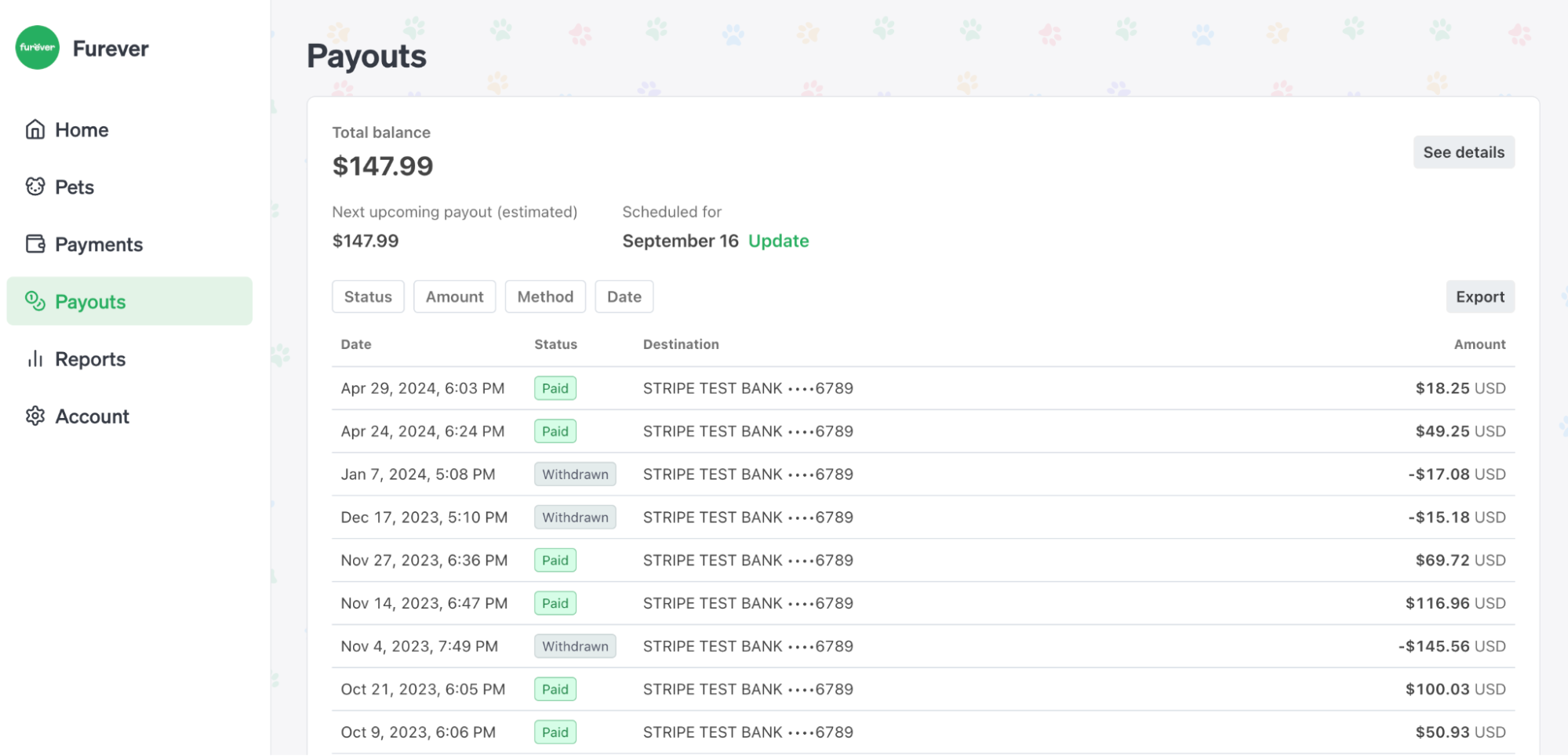
Connected accounts can now view balance, payouts, change payout schedule, and change their bank destination.
Keeping connected accounts enabled for payments
Connected accounts may become unable to process payments or obtain payouts for a wide variety of reasons - exceeding processing thresholds, balance overdrafts, or changing regulations, which require additional information from accounts to process payments. To keep accounts enabled, we can automate the information collection flows by enabling the notification_banner component, and render it in our app header.
The notification_banner is conditionally rendered - meaning it will only render when the account is disabled and needs additional information.
const accountSession = await stripe.accountSessions.create({
  account: stripeAccountId,
  components: {
    payments: {
      enabled: true,
    },
    payouts: {
      enabled: true,
    },
    notification_banner: {
      enabled: true,
    },
    // Other components go here...
  },
});

// AppHeader.tsx
import {
  ConnectNotificationBanner,
} from '@stripe/react-connect-js';

export const AppHeader = ({ children } ) => {
  return (
    <div>
       <ConnectNotificationBanner />
       <>{children}</>
    </div>
  );
}
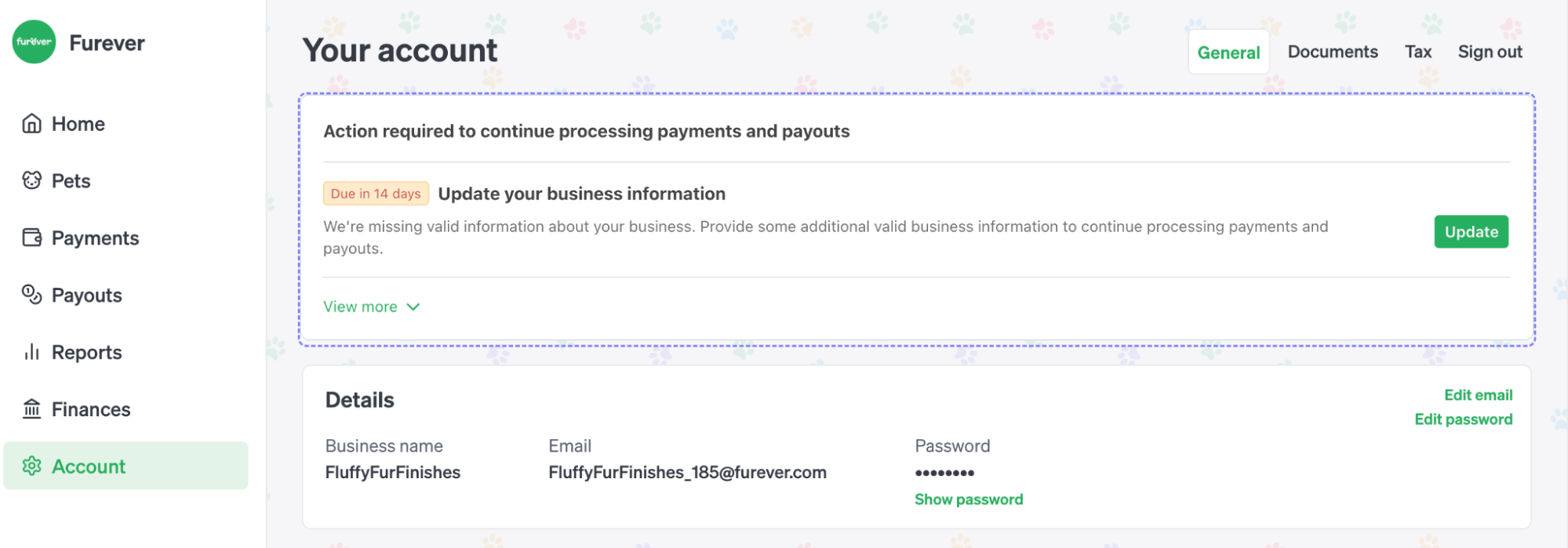
The notification banner (shown within the outline for clarity) now renders when a requirement is present on the connected account, to keep payments and payouts enabled.
Mapping platform user roles to account session features
So far we’ve used components configured with default account session features. In the case of FurEver, we have admin users and regular users, and we want to toggle features depending on the user role. For example, only admin users should be able to perform refunds on the payments component:
export async function POST() {
  const session = await getServerSession(authOptions); // Get FurEver session state
  const isAdmin = session.user.isAdmin;
  const stripeAccountId = session.user.stripeAccount.id;
  const accountSession = await stripe.accountSessions.create({
    account: stripeAccountId,
    components: {
      payments: {
        enabled: true,
        features: {
          refund_management: isAdmin,
          dispute_management: isAdmin,
        },
      },
      payouts: {
        enabled: true,
        features: {
          edit_payout_schedule: isAdmin,
        },
      },
      notification_banner: {
        enabled: true,
      },
      // Other components go here...
    },
  });

  return new Response(JSON.stringify(accountSession), {
    status: 200,
    headers: {'Content-Type': 'application/json'},
  });
}
The account session is now configured correctly to respect admin user roles, and components automatically adjust their behavior depending on this configuration.
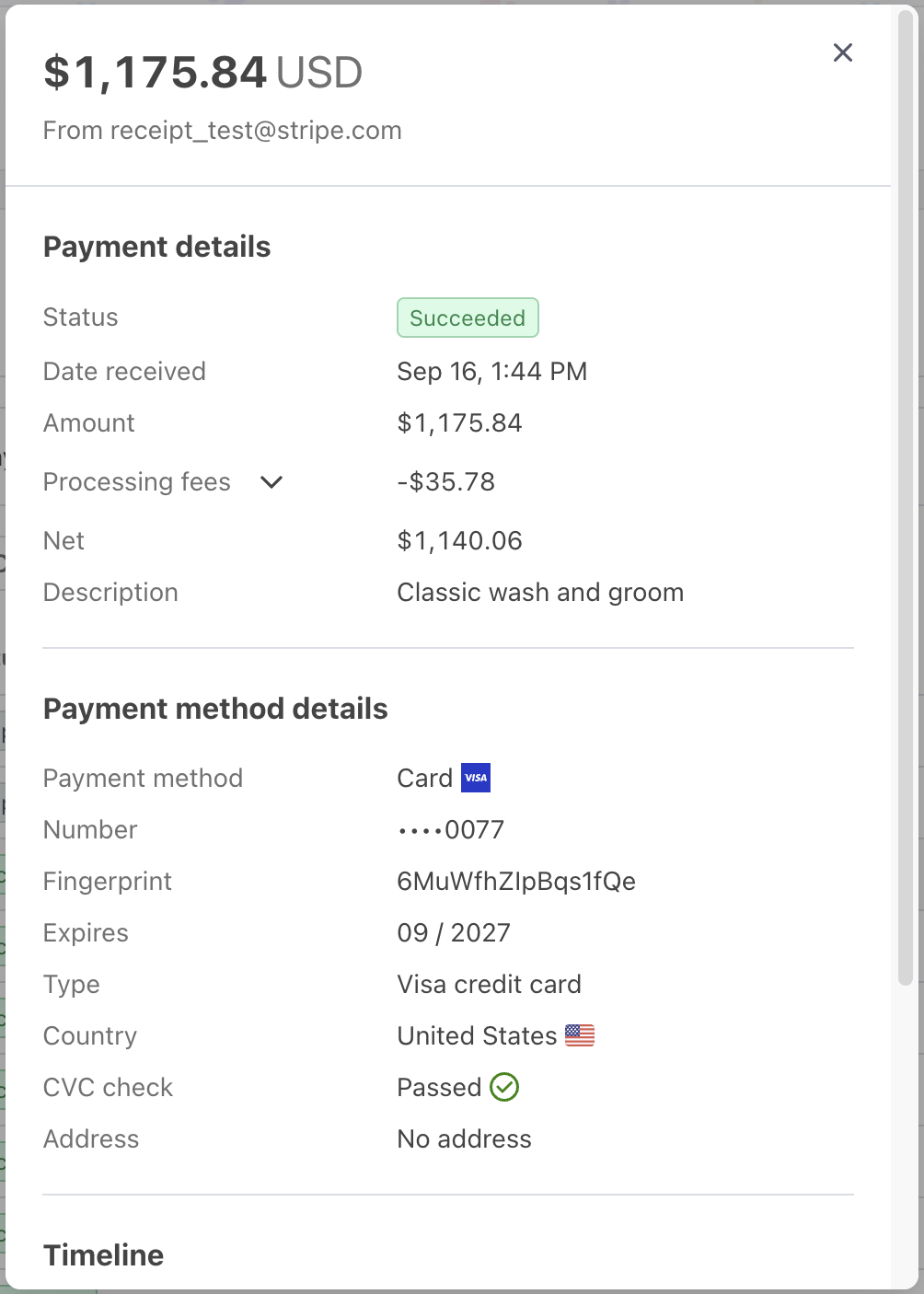
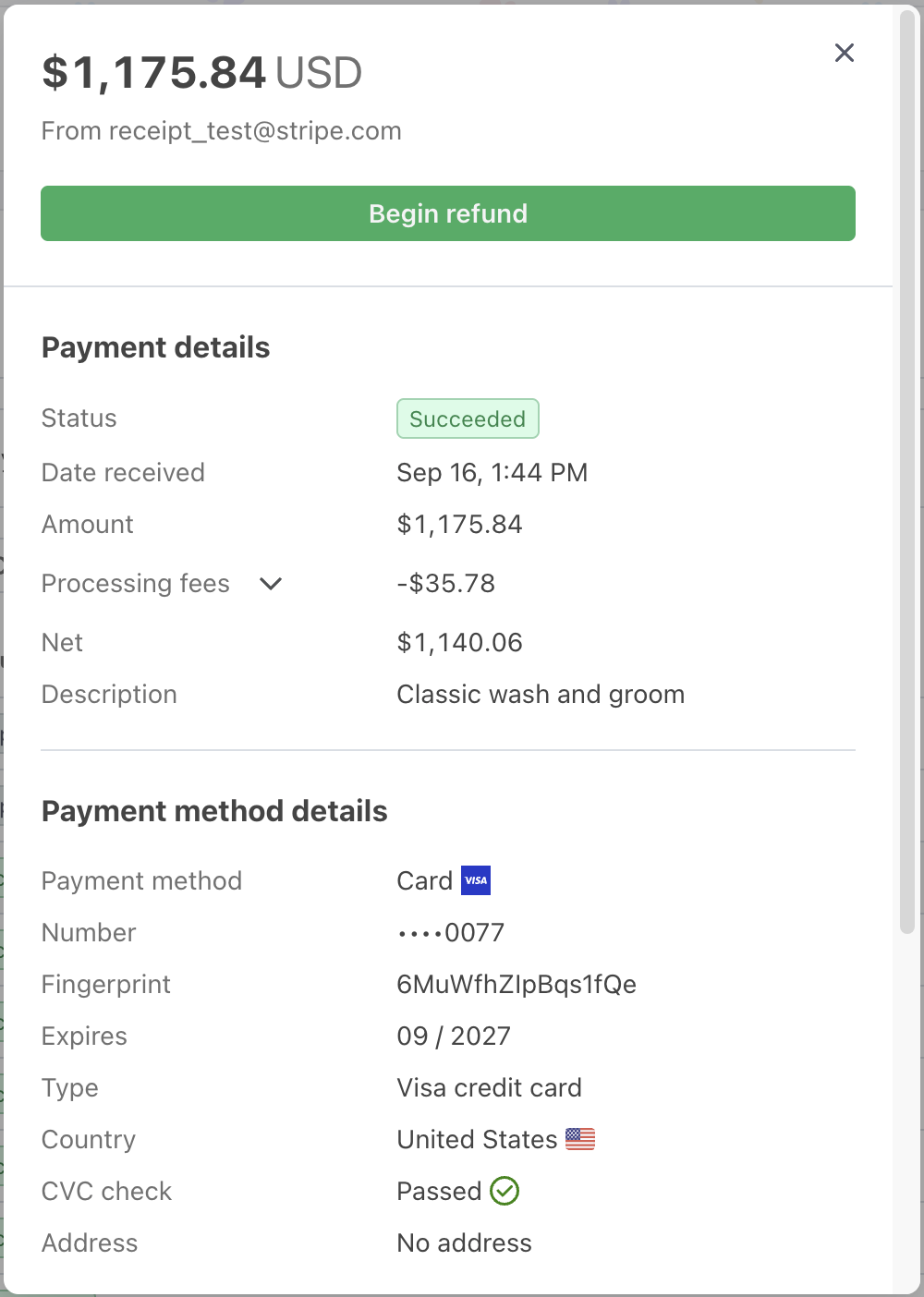
The refund flow is only enabled for FurEver admins.
Matching the look and feel of the platform site
By using the appearance API, we can get the components to look exactly like the rest of the UI. We recommend using the “upload” functionality of our theming doc site which can take an image of your site, and output theming values you can fine tune.
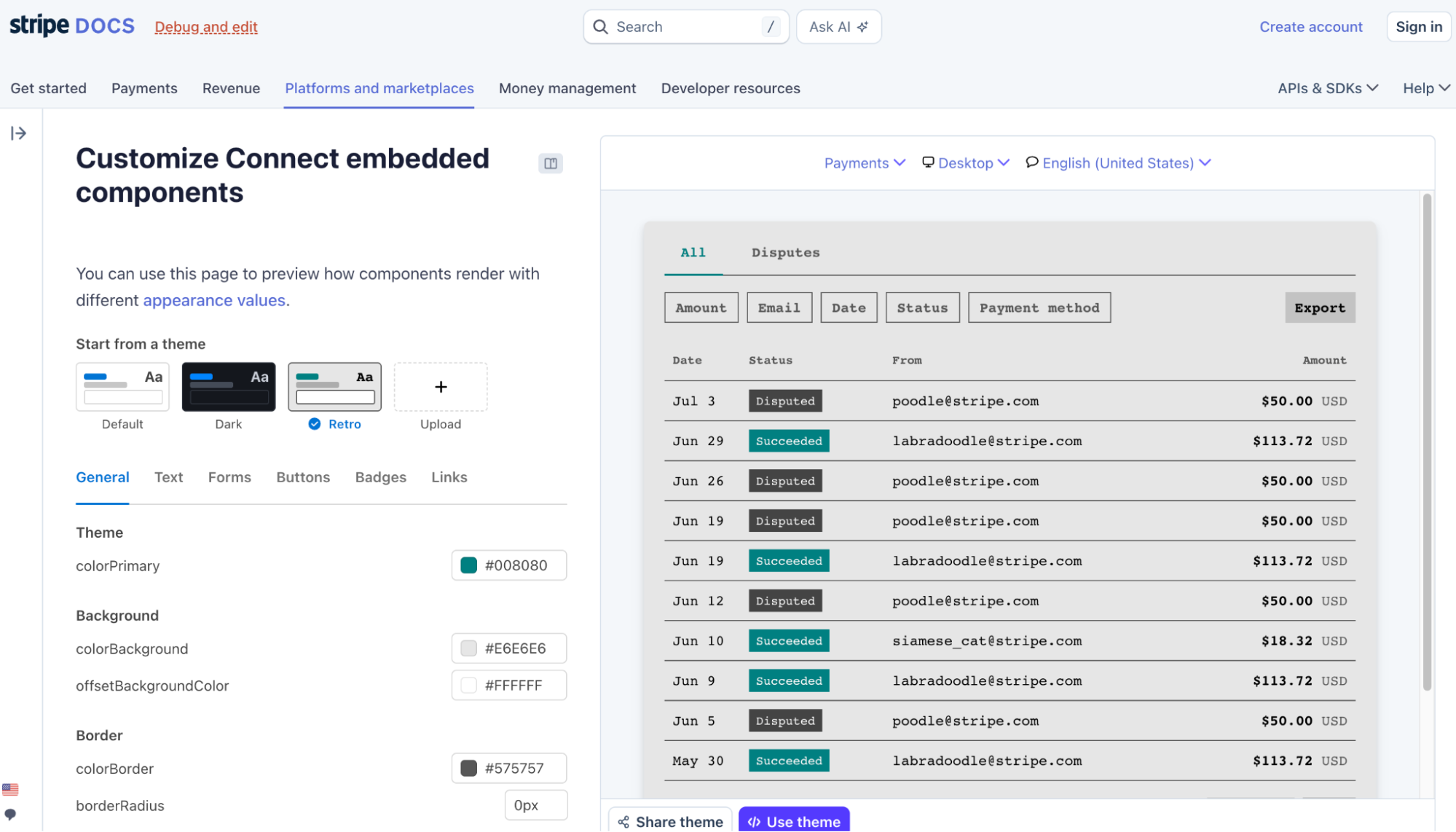
FurEver uses the following theme, and toggles it depending on whether the app is in dark or light mode - it also passes in the current locale, to ensure this matches the rest of the dashboard.
export const defaultPrimaryColor = '#27AE60';

export const LightTheme = {
  fontFamily: 'Sohne, inherit',
  colorPrimary: defaultPrimaryColor,
  colorBackground: '#ffffff',
  colorBorder: '#D8DEE4',
  ...
  // See full light theme [here](https://github.com/stripe/stripe-connect-furever-demo/blob/6c99740f14bf9d76d127aa0495cf38b9ab72ff3b/app/contexts/themes/ThemeConstants.ts#L3)
};

export const DarkTheme = {
  fontFamily: 'Sohne, inherit',
  colorPrimary: defaultPrimaryColor,
  colorBackground: '#1e222a',
  ...
  // See full dark theme [here](https://github.com/stripe/stripe-connect-furever-demo/blob/6c99740f14bf9d76d127aa0495cf38b9ab72ff3b/app/contexts/themes/ThemeConstants.ts#L23)
};
...

const appearanceVariables = theme === 'dark' ? DarkTheme : LightTheme; // Toggle depending on current FurEver theme
const instance = loadConnectAndInitialize({
  ...
  appearance: {
    overlays: 'dialog',
    variables: appearanceVariables || LightTheme,
  },
  locale,
  ...
});
Conclusion
By using embedded components and writing only a few lines of code, we’ve built a full payments dashboard for FurEver connected accounts that:
- Provides connected accounts with full functionality for payments, payouts and keeping accounts enabled via notification banner
- Snaps to FurEver user role permissions by using account session features
- Matches the FurEver look and feel by using appearance and locale
- Updates automatically, so FurEver won’t miss any new payment methods or compliance updates
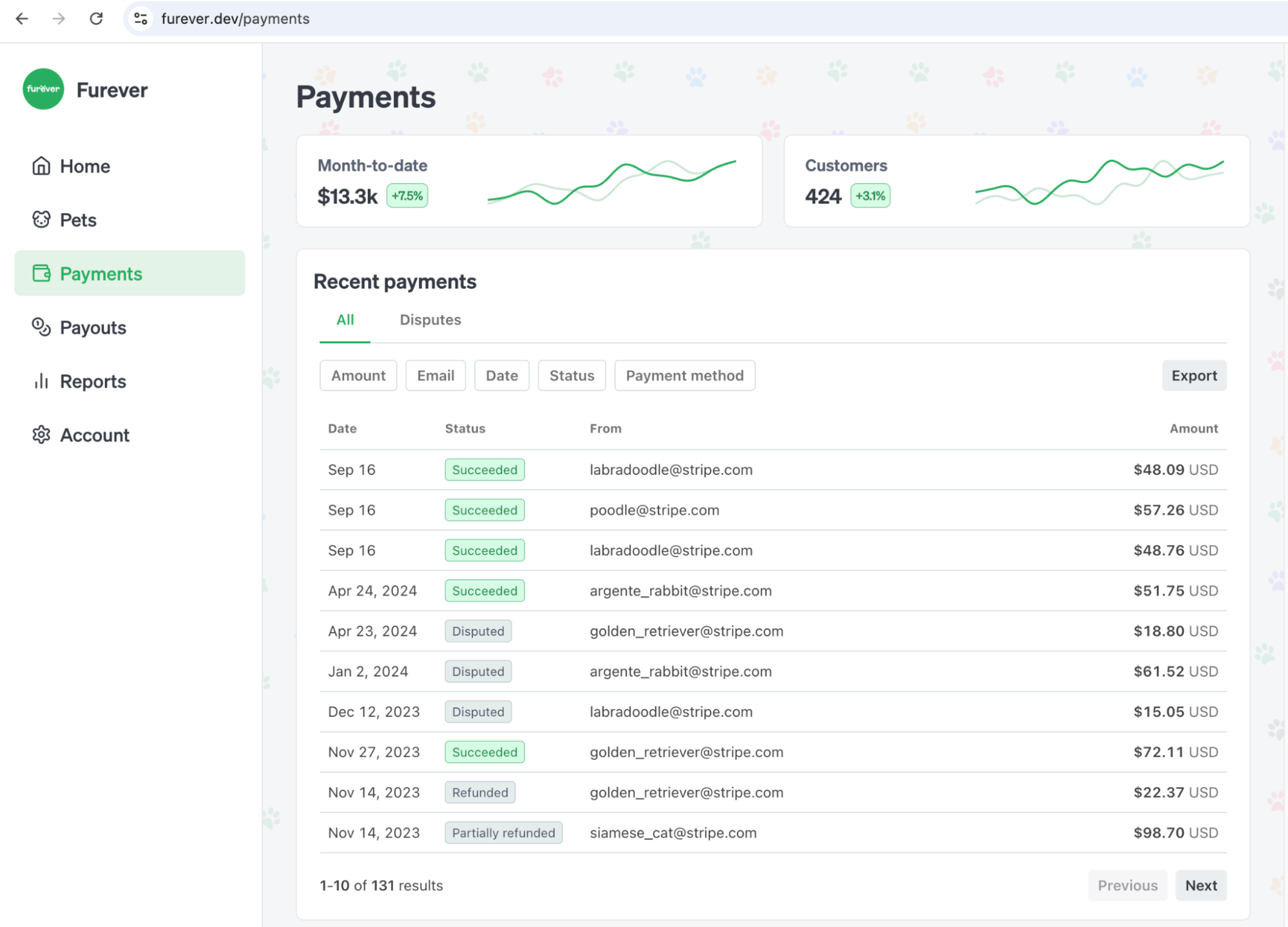
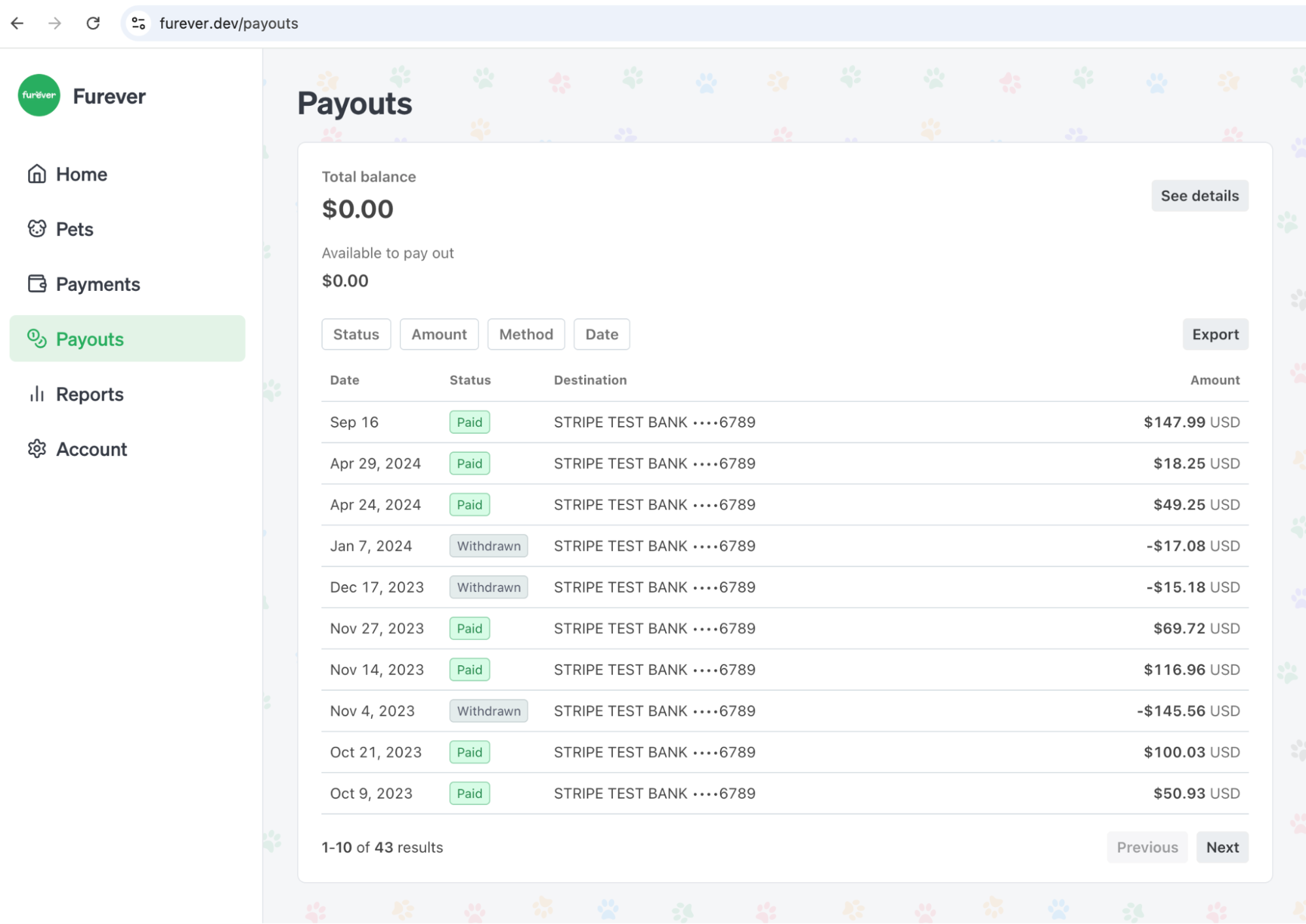
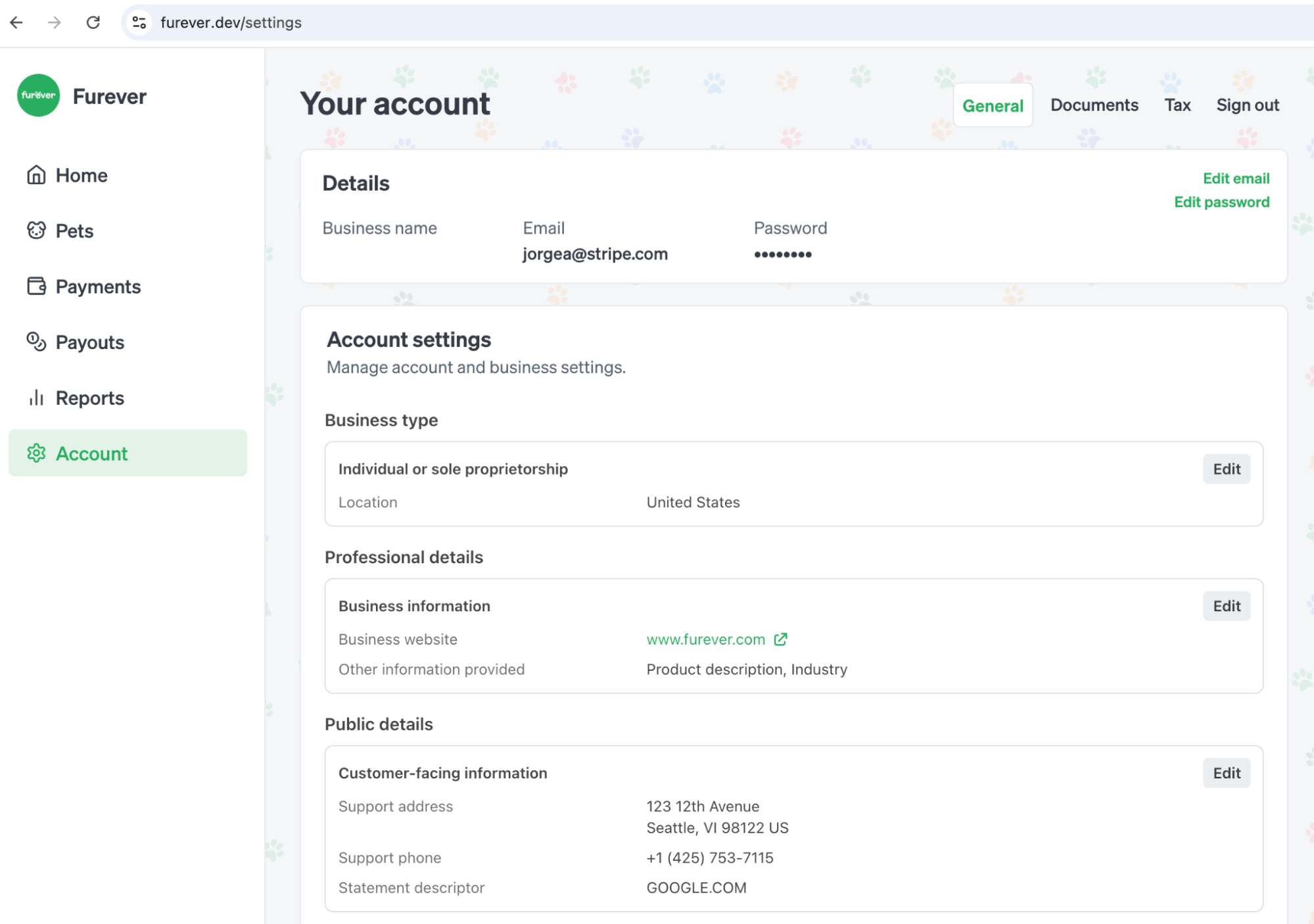
You can try this demo live at https://furever.dev. This sample is open source: https://github.com/stripe/stripe-connect-furever-demo.
In this blog post we’ve used only three components. Stripe offers a growing catalog of embedded components, including components for areas such as Instant payouts, Capital, Tax, and Issuing. To see the full component list and read more about how to integrate with them please visit our supported components page.